
Many plugins have quietly disappeared since AI features became a big part of Figma. Some were completely replaced, while others just weren't needed anymore. Still, a handful continue to prove their value every single day.
These aren't tricks or short-term ways to get more done. They are tools that really help us design, work together, and get things done better. Some speed up our work. Some help connect design and development. Others solve practical problems that AI does not address well. Here are five plugins we genuinely rely on and fully expect to keep using throughout 2026. No gatekeeping, just tools that work.
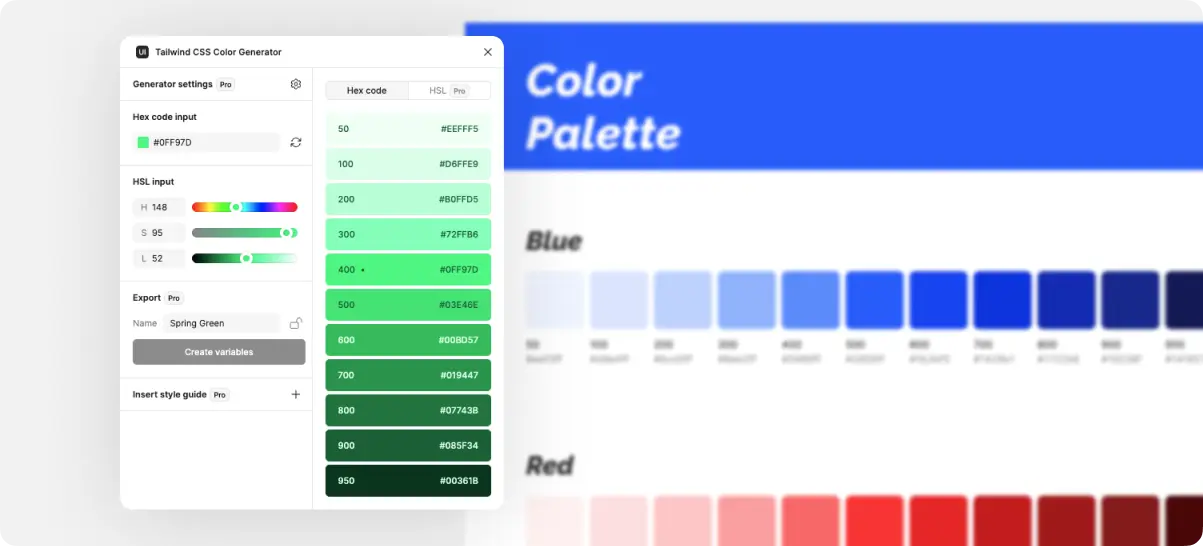
1. Tailwind CSS Color Generator
Let's start with something basic. It's not as easy to give developers a design as it is to send them a link. When a project involves a design system, it's important to have clear rules for handing off work. It is important to standardize things like typography, spacing, components, icons, input fields, and many more. Color is at the heart of it all. It's not enough to just pick a hex value to define colors. Developers need structured palettes that can be used in the same way in all codebases. That's exactly what the Tailwind CSS Color Generator does.
It makes a whole range of shades, from the lightest tint to the deepest tone, based on Tailwind's rules. Instead of making changes by hand or guessing values, designers can quickly make a palette that developers can use right away in production. It's easy, quick, and clears up any confusion about one of the most important parts of designing an interface.
2. Typography Bundle (Typescales, Text Styles Generator & Typography Style Guide)
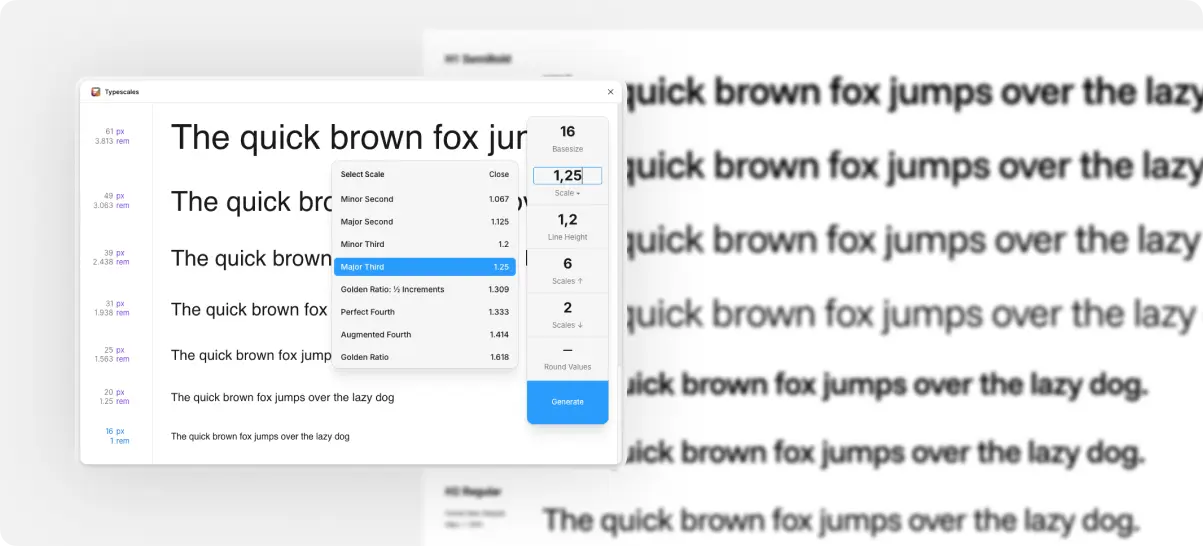
Continuing with design systems, the next thing that needs to be exact and predictable is typography. Our second pick is actually a combination of three plugins that work together to produce clean, developer-ready typography.
Typescales helps you make modular scales, which are used to set visual rhythm and hierarchy in font sizes. The plugin makes proportional increases and decreases from a base size using a multiplier you choose. This lets designers quickly choose heading, subheading, and body text sizes that look and feel right. Once those sizes are set, they can be named in a way that makes sense based on their size and weight. For example, H1 Regular, H1 Light, H2 Regular, and so on.
Text Styles Generator is next. Once you've chosen the prepared text layers and set properties like line height and letter spacing, the plugin turns them into Figma text styles all at once. Its goal is simple but very helpful. It makes or updates a lot of local text styles based on how regular text layers are formatted. At that point, developers have everything they need, but it can still be hard to find those values in Dev Mode.
This is where the Typography Style Guide comes in. It uses the styles that are already there to make a visual reference frame that shows all the font sizes and weights. Designers can put this frame on a style guide page so that developers can quickly find the rules for typography without having to search through the file. These three plugins work together to make the time-consuming setup process into a clean, organized workflow.
3. Tabler Icons
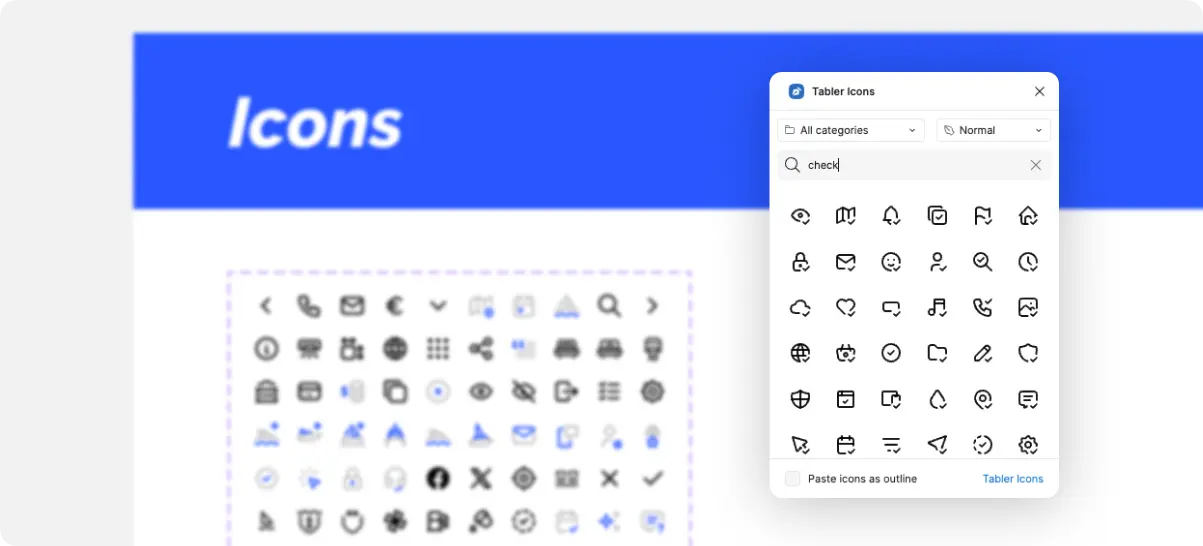
Tabler Icons is the best way to add icons to almost any interface. This plugin gives you access to a library of over 5,900 free, high-quality SVG icons that are available under the MIT license. You can search for icons, filter them, and add them to your design right in Figma. You can change the stroke width, color, and other properties of the icons natively because they stay fully editable vector curves after you add them. There is no flattening or locking. We use Tabler Icons every day on most of our projects. It is quick, adaptable, and free, which makes it a simple choice for making interfaces.
4. Mockup Plugin by ls.graphics
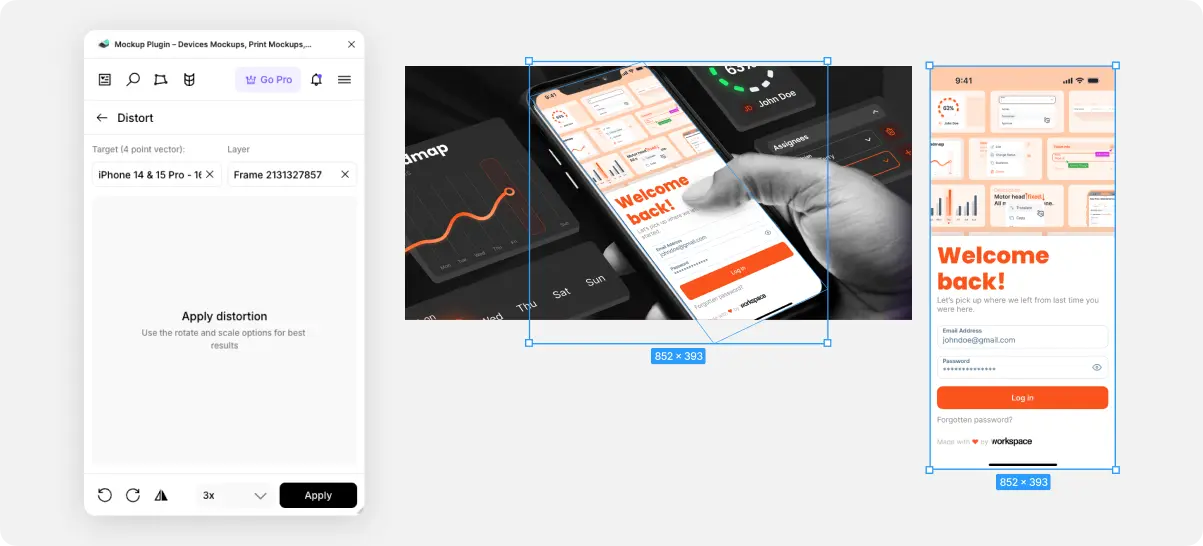
ls.graphics has a huge library of design resources, and their Figma plugin is one of the best mockup tools out there. There are three main parts to it. You can look through both free and paid device and scene mockups in the mockup library and put them right on your canvas. Even the free choice is big enough for most situations.
You can use the distort transformation feature to easily add your design to perspective mockups using a four-point mapping method. Choose your design frame, line it up with the target rectangle, and the plugin will change it right away. This tool can do more than just use the built-in library. It can be used on any four-point shape in any image or layout, which is surprisingly flexible.
Lastly, the warp transformation tool adds a feature to Figma that is similar to Photoshop's warp tool. You can change the shape and look of designs to fit curved surfaces or strange angles without leaving the design environment. This plugin saves a lot of time compared to traditional raster editing workflows when making presentations, marketing visuals, or quick concept mockups.
5. Jitter - Animation for Figma
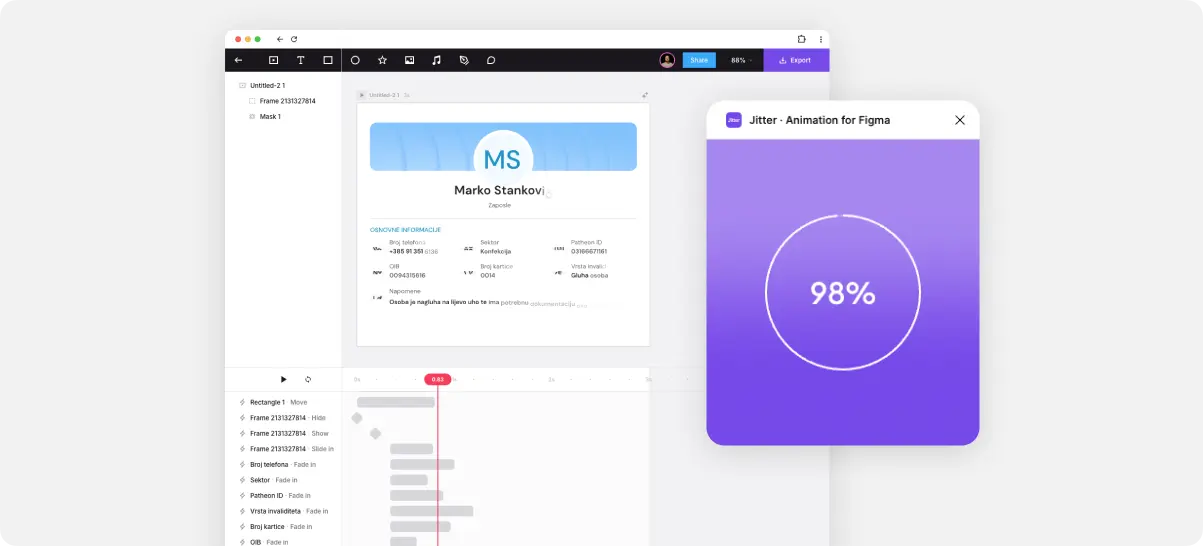
Jitter is our last pick, and it's probably the most powerful one left. Jitter is a motion design tool that works in a web browser and was made just for modern product teams. It was made for UI animation, social content, and product marketing visuals, not for cinematic animation or heavy compositing.
What makes Jitter stand out is how naturally it fits into a Figma-centered workflow. Designers use the right auto layout, constraints, and layer structure to set up frames. When the plugin sends a frame to Jitter, it comes in as layers that can be changed. Text is still text, vectors are still vectors, and groups are still groups. This is very important for design work that is done over and over again because nothing becomes a flat image. You can then use animation in a way that feels more like adding transitions than making motion from scratch.
The tool assumes that you already have a polished interface design, which speeds up the process a lot. Jitter is not meant to take the place of high-end motion software, and that's why it works so well. It puts a lot of emphasis on speed, ease of use, and smooth integration with product design workflows. It's easy to see why the number of users keeps growing quickly when you consider that it loads quickly and is browser-based
Final thoughts
You don't need the best tools to be a great designer. Plugins can't teach you how to think about UX, plan, or solve problems. They just take away the friction so you can focus on the work.
Tools like Tailwind CSS Color Generator and the Typography Bundle help us give developers clear, organized design systems instead of sending them messy files.
Tabler Icons lets us add assets directly to the file instead of wasting time looking for icons on the internet during early drafts or prototypes.
The ls.graphics Mockup Plugin lets you make mockups right in Figma instead of having to open complicated raster software just to get ready for a presentation.
And when we want to bring designs to life or showcase them in motion, Jitter makes animation accessible without leaving the browser.
Plugins don't replace skill when used wisely. They make it louder.